準備把舊手機賣掉或送去回收,卻不知道要先做哪些準備? 這篇文章由青蘋果3C整理,從備份資料、登出帳號到恢復原廠設定, 提供 iOS 與 Android 雙平台的完整操作流程, 讓你的個人資料在手機離手前徹底清除,安心換現金。
Before selling or recycling your old phone, are you sure your personal data is fully protected? This guide by Green Apple 3C walks you through 7 essential steps—covering both iPhone (iOS) and Android—to back up your data, sign out of accounts, and perform a proper factory reset before handing over your device.
為什麼手機回收前的準備這麼重要?
許多人以為只要「恢復原廠設定」就萬無一失,但實際上若步驟順序錯誤, 仍可能殘留 iCloud 啟用鎖、Google 帳號綁定,甚至讓下一位持有人透過 資料還原工具讀取部分舊資料。個資保護的責任在於你, 正確的準備流程是保護自己的第一道防線。
Many sellers assume a factory reset is all it takes—but skipping certain steps can leave behind iCloud Activation Lock, linked Google accounts, or even recoverable data fragments. Protecting your personal information is your responsibility, and following the correct sequence of steps is the most effective safeguard before any device changes hands.
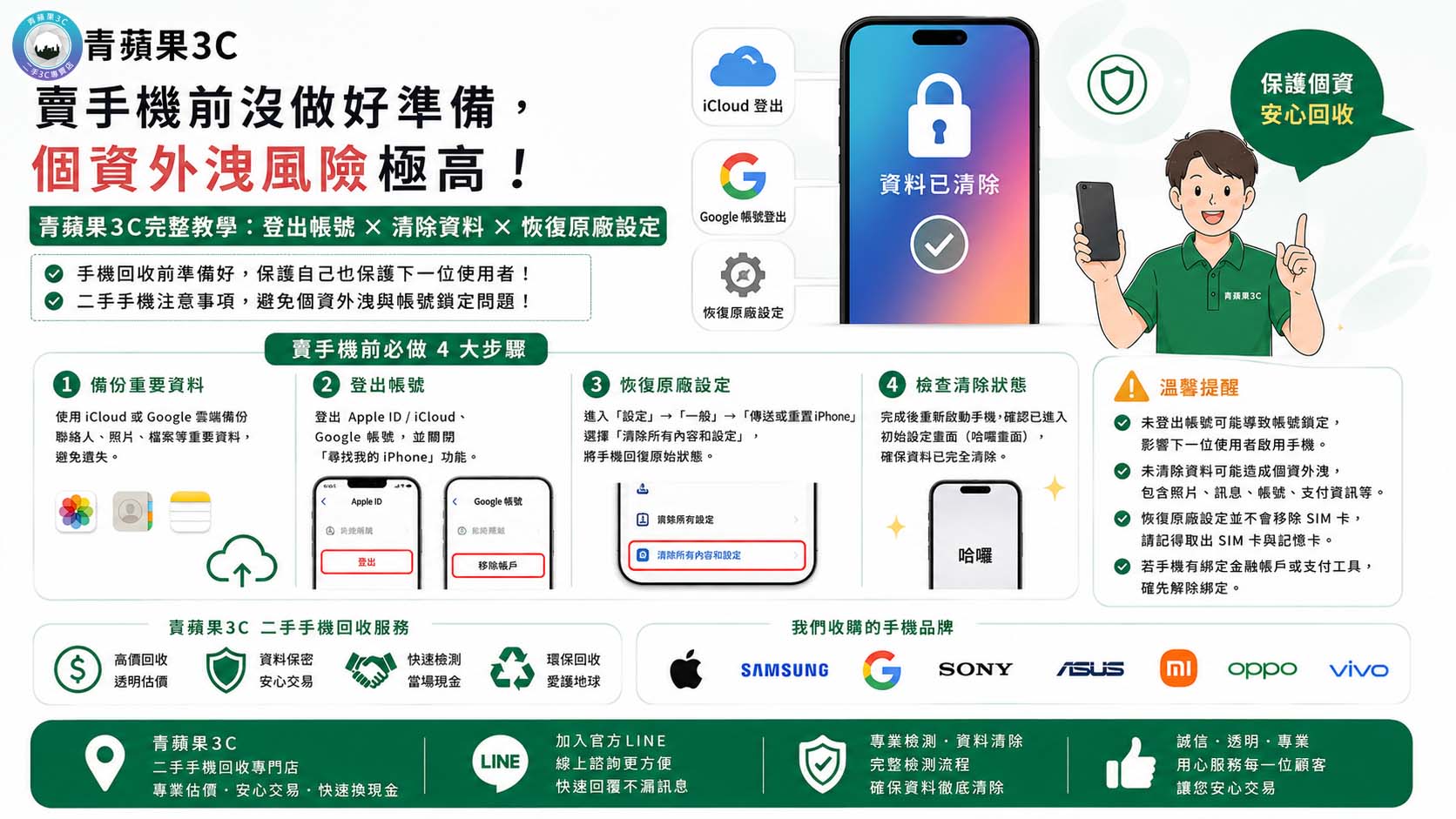
手機回收前必做 7 件事(iOS & Android 適用)
第 1 步:備份照片與重要檔案
這是所有步驟中最優先的一步,請在任何清除動作之前完成備份。
This is the most critical first step. Always back up your data before performing any erase or reset actions.
- iPhone 用戶: 前往「設定 → 你的名字 → iCloud → iCloud 備份 → 立即備份」, 或透過 Mac/PC 的 Finder/iTunes 進行本機備份。 相簿可額外開啟「iCloud 照片」確保雲端同步完整。
- Android 用戶: 前往「設定 → Google → 備份」開啟 Google 備份, 並確認相片已同步至 Google 相簿。 Samsung 用戶可額外使用 Samsung Cloud 或 Smart Switch 備份。
iPhone users: go to Settings → [Your Name] → iCloud → iCloud Backup → Back Up Now, or use Finder / iTunes for a local backup. Android users: navigate to Settings → Google → Backup and confirm Google Photos sync is active before proceeding.
第 2 步:備份聯絡人、行事曆與通話記錄
照片之外,聯絡人與行事曆同樣是高價值個人資料, 務必確認已同步至雲端帳號或匯出為 .vcf 檔案留存。
Beyond photos, contacts and calendar entries are equally sensitive. Ensure they are synced to iCloud or Google, or exported as .vcf / .ics files to a computer before wiping the device.
第 3 步:備份 APP 資料與遊戲進度
LINE 的聊天記錄、手遊的角色進度這些資料無法透過標準 iCloud 或 Google 備份完整保存,需要在各自的 APP 內手動執行備份或帳號轉移。
- LINE:LINE App 內 →「設定 → 聊天 → 備份聊天記錄」, 選擇備份至 iCloud(iOS)或 Google Drive(Android)。
- 手機遊戲:確認已完成帳號綁定(Apple ID、Google、 Facebook 或遊戲官方帳號),避免進度遺失。
LINE chat history and mobile game progress require manual in-app backup or account migration, as they are not included in standard cloud backups. Complete these before any reset.
第 4 步:登出 Apple ID(iPhone 用戶必做)
這是 iPhone 收購流程中最關鍵的一步。未登出 Apple ID 將導致 iCloud 啟用鎖殘留,使下一位持有人無法正常使用裝置, 也是青蘋果3C門市無法完成收購的首要原因。
For iPhone sellers, this is the single most important step. Failing to sign out of Apple ID leaves iCloud Activation Lock enabled, making the device unusable for the next owner—and it is the most common reason buyout stores, including Green Apple 3C, cannot complete a purchase.
- 前往「設定 → 你的名字」,滑至最底部,點選「登出」
- 輸入 Apple ID 密碼確認,選擇是否保留一份 iCloud 資料副本於本機
- 登出完成後,Apple ID 欄位將顯示空白,確認啟用鎖已解除
Go to Settings → [Your Name] → scroll to the bottom → Sign Out. Enter your Apple ID password to confirm. Once signed out, verify that the Apple ID field on the device is blank before proceeding to reset.
第 5 步:登出 Google 帳號(Android 用戶必做)
Android 裝置同樣有「原廠重置保護(FRP)」機制, 若在恢復原廠設定前未登出 Google 帳號, 重置後開機將要求輸入原帳號密碼,導致裝置被鎖定。
Android devices have a Factory Reset Protection (FRP) mechanism. If you perform a factory reset without first removing your Google account, the device will be locked to your credentials upon reboot—making it unusable for the next owner until the original account is verified.
- 前往「設定 → 帳戶 → Google」,點選你的帳號後選擇「移除帳戶」
- Samsung 用戶請額外前往「設定 → 帳戶與備份 → 管理帳號」, 確認 Samsung 帳號也一併移除
第 6 步:解除已配對的裝置與服務綁定
除了主要帳號,別忘了解除下列綁定,避免個人資料透過其他管道外洩:
Beyond your main account, remember to delink the following services to ensure no residual access to your personal information:
- ✅ Apple Watch(若有配對):手錶端「解除與 iPhone 配對」
- ✅ Apple Pay / Google Pay:移除所有已綁定的信用卡與金融卡
- ✅ 行動支付 App(街口、LINE Pay、全支付等): 登出並解除裝置授權
- ✅ 銀行 App、證券 App:登出並於官方網站解除裝置認證
- ✅ 雙重驗證 App(如 Google Authenticator): 遷移至新裝置後再清除
第 7 步:恢復原廠設定(最後一步)
完成以上所有步驟後,再執行恢復原廠設定。 請注意:順序不能顛倒,必須先登出帳號,再執行重置。
Only after completing all previous steps should you perform a factory reset. The order matters: sign out of accounts first, then reset. Never reverse this sequence.
- iPhone: 「設定 → 一般 → 轉移或重置 iPhone → 清除所有內容和設定」, 確認後等待重置完成,裝置將回到初始歡迎畫面。
- Android(原生): 「設定 → 系統 → 重設選項 → 清除所有資料(恢復原廠設定)」
- Samsung: 「設定 → 一般管理 → 重設 → 恢復原廠資料」
iPhone: Settings → General → Transfer or Reset iPhone → Erase All Content and Settings. Android: Settings → System → Reset Options → Erase All Data. Samsung: Settings → General Management → Reset → Factory Data Reset. After the reset, your device should display the initial setup welcome screen, confirming the wipe was successful.
完成以上步驟後,建議再做一次最終確認
交機前,用以下清單做最後一輪核對:
- ☑ 開機後顯示初始設定畫面(無需帳號登入即可繼續)
- ☑ 設定內無任何帳號殘留
- ☑ Apple Pay / Google Pay 已無任何卡片
- ☑ 相簿、聯絡人、訊息均已清空
- ☑ 若為 iPhone,啟用鎖頁面顯示「此 iPhone 未與任何 Apple ID 關聯」
Before handing over your device, run through this final checklist: the device boots to the initial setup screen without requiring an account, no accounts remain in settings, all payment methods are removed, and for iPhone, the Activation Lock page confirms no Apple ID is linked.
準備好了?帶去青蘋果3C,當場換現金
完成所有準備步驟後,你的手機已處於最佳收購狀態。 攜帶裝置、有效身分證件親至青蘋果3C任一門市, 專業鑑價師將為你進行免費現場檢測,確認報價後當場現金交付, 整個流程透明無壓力。
Once your device is fully prepared, it’s ready for a smooth and transparent buyout at any Green Apple 3C location. Bring your device and a valid ID for on-site identity verification. Our specialists will assess your phone on the spot, provide a fair cash offer, and complete the transaction immediately—no waiting, no hidden deductions.